Streams
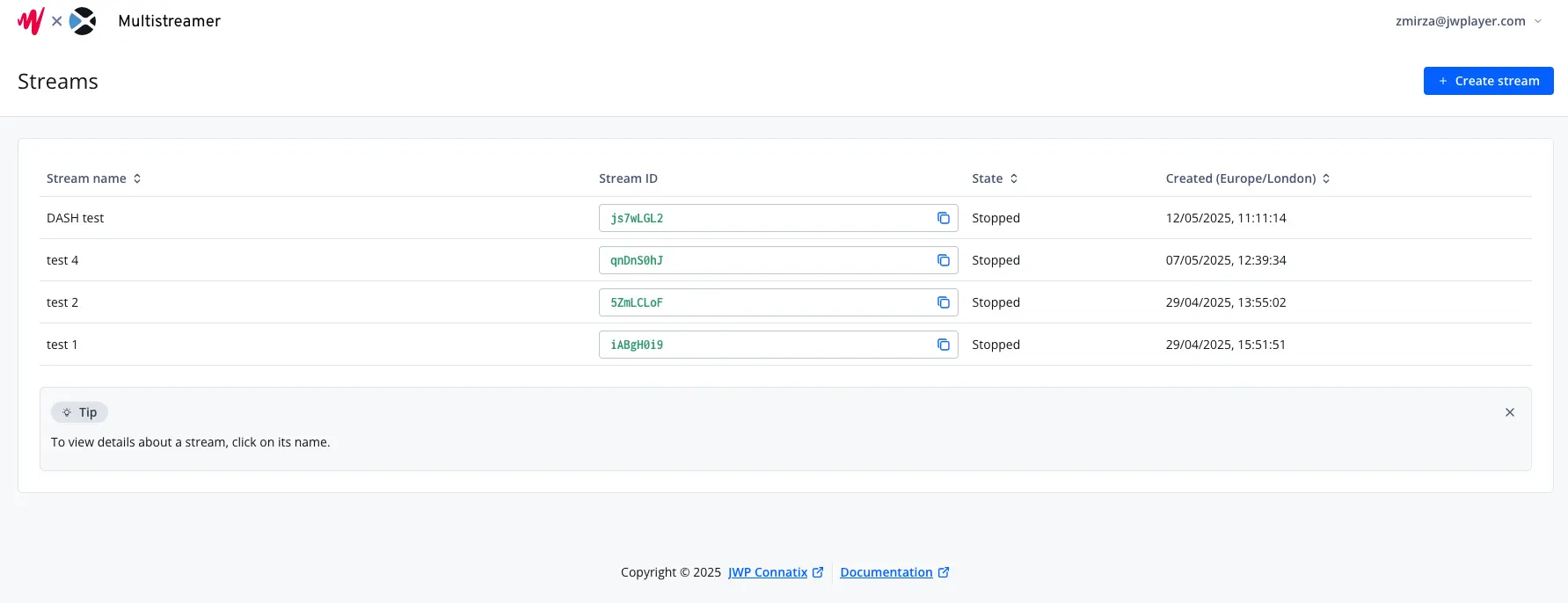
Using the Multistreamer front-end, you can setup, update, start/stop and delete your streams.
Creating a stream
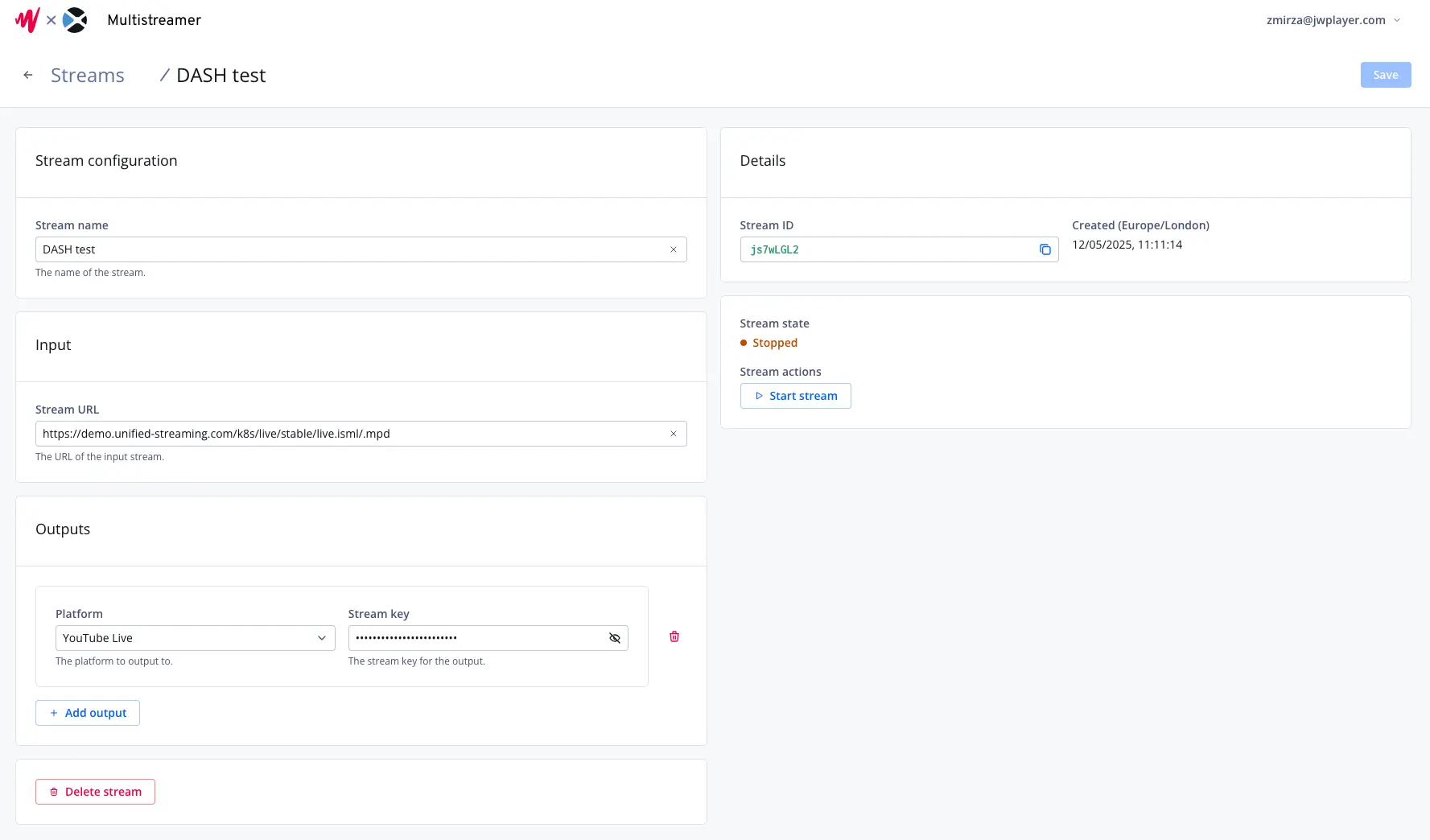
In the Multistreamer dashboard, you can easily setup a new stream.
- Navigate to the streams page of the Multistreamer front-end
- Click the "Create stream" button in the top right
- Under "Stream name", enter a name
- Under "Stream URL", enter the URL to the stream you would like to be multistreamed. This can be HLS or DASH.
- Under "Outputs", click "Add output" to add an output.
- Under "Platform", either select the platform you would like to stream to, or "Custom RTMP" for other platforms.
- Under "Stream key", enter the stream key provided by the platform you are streaming to.
- If you selected "Custom RTMP", under "RTMP URL" enter the RTMP URL for the platform you are streaming to. This should start with
rtmp://orrtmps://. - Repeat these steps for each output.
- Click "Save" to save the stream configuration.
Start or stop a stream
Once you are ready to go live, you can start the stream in the Multistreamer dashboard:
- From the streams page of the Multistreamer front-end, click the name of the stream
- On the right of your screen under "Stream actions", there is a button to start or stop the stream, depending on its current state
Delete a stream
To delete a stream:
- From the streams page of the Multistreamer front-end, click the name of the stream
- On the left of your screen there is a button to delete the stream